iAlert.com members who want Severe Weather and Emergency Alert notification messages sent by text message must first validate and link their mobile phone to their account. This is done by iAlert sending a “validation code” text message, with three ways for members to enter this validation code.
Entering Mobile Activation Code at Initial Sign-up
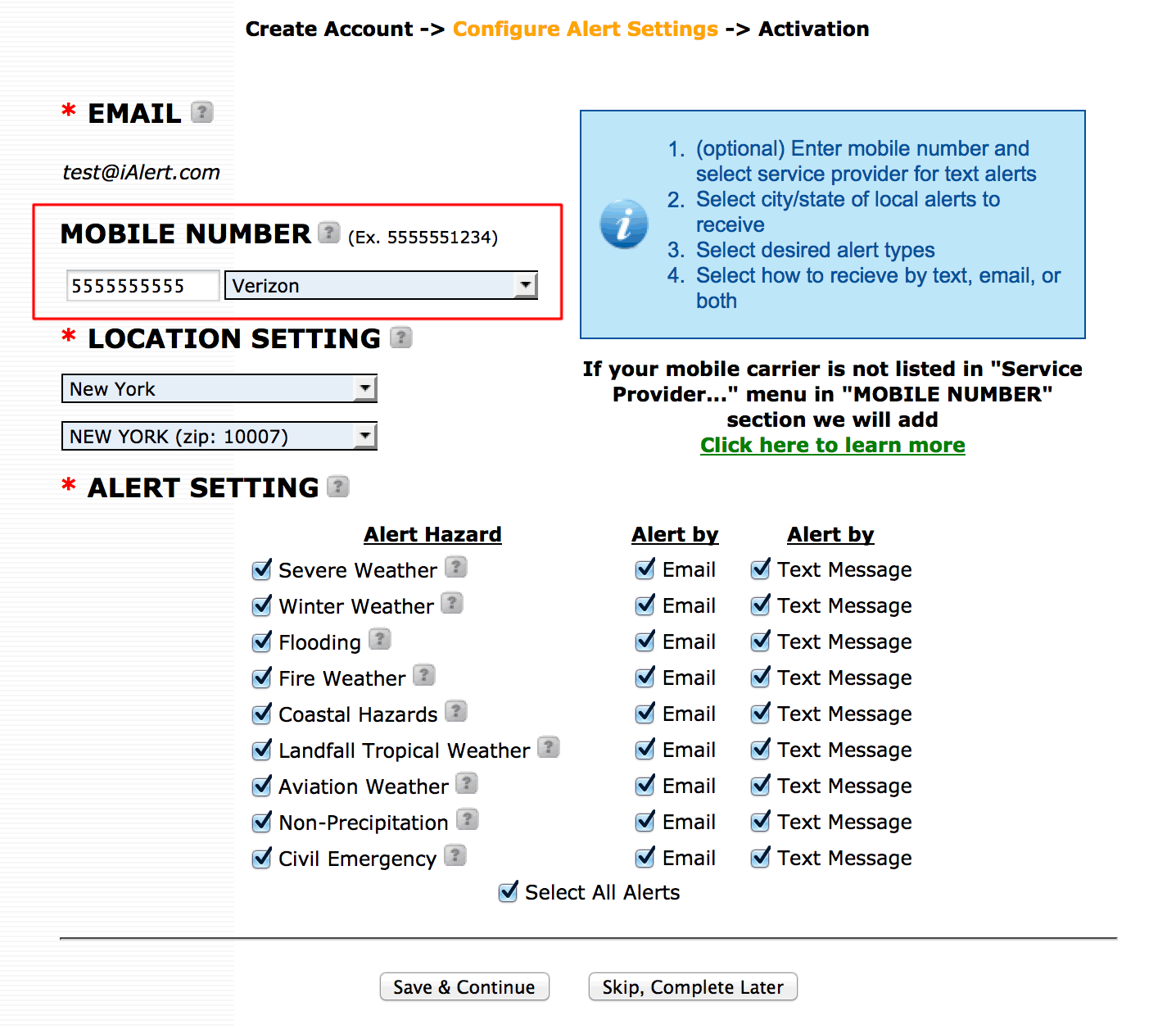
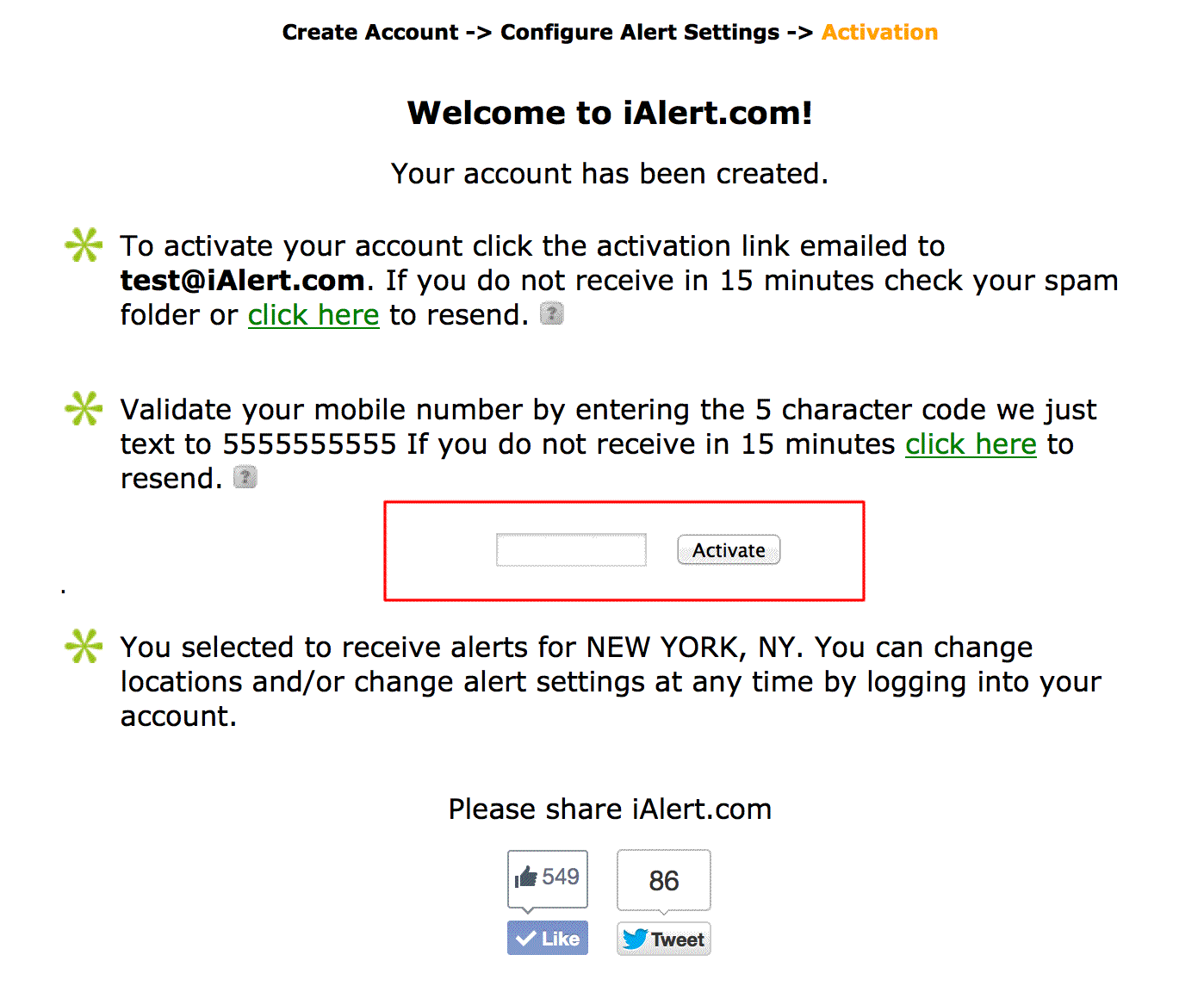
New members are offered an option to configure alerts at initial signup. On the alert settings page there is an option to add a mobile phone and to check which alerts to receive by text message and/or email. After submitting the alert setting with mobile number included a a validation code will be sent by text message and on the next displayed “Welcome Page” an entry box presented to enter that activation code.
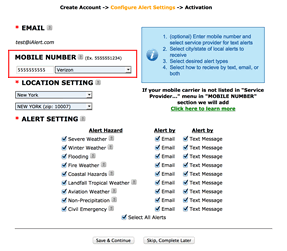 Alert setting page with option to add mobile phone for text alerts (click to enlarge) |
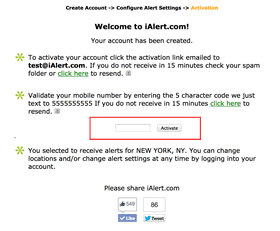 Welcome page to enter mobile activation code sent by text message (click to enlarge) |
Entering Mobile Phone and Activation Code After Initial Sign-up
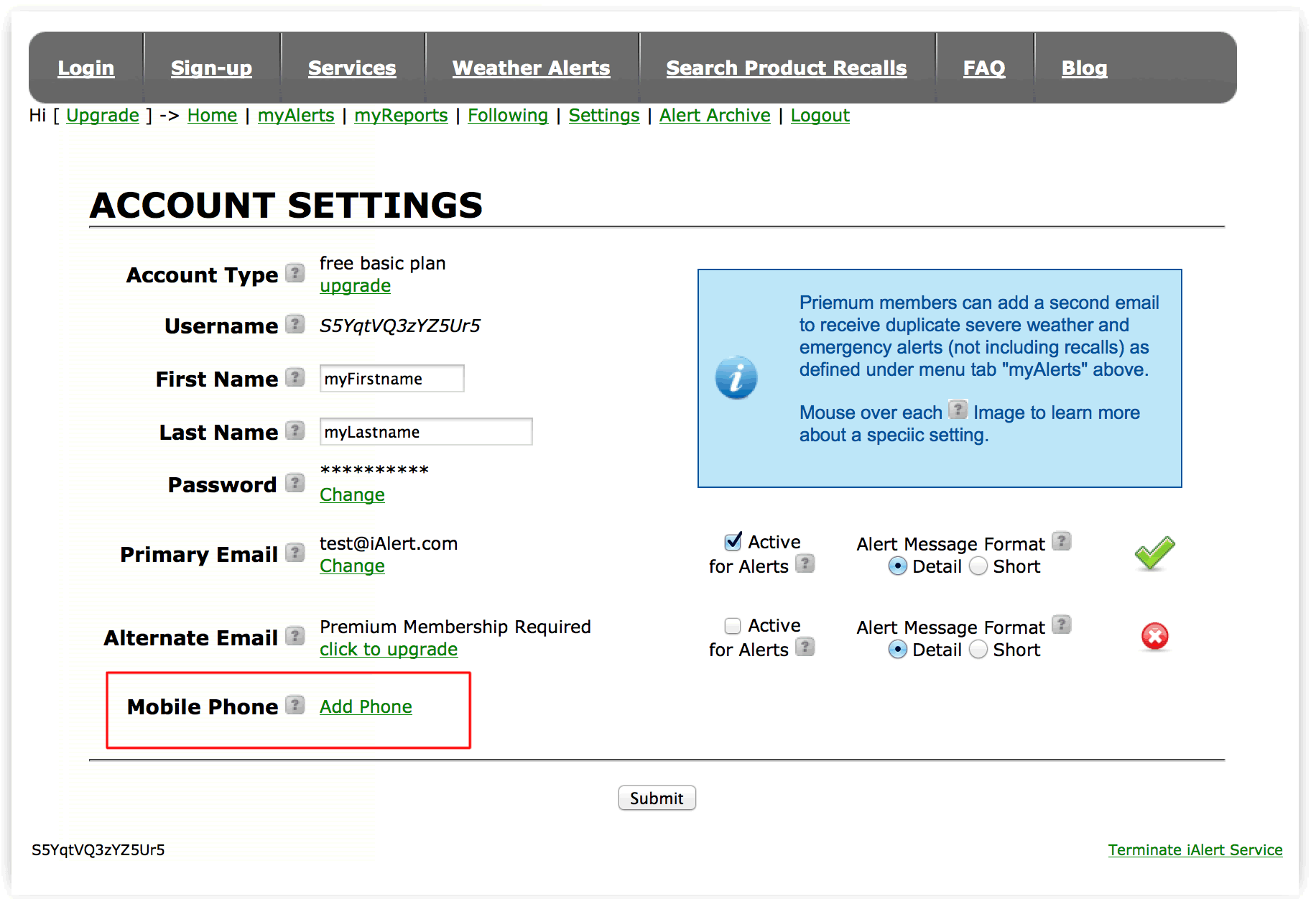
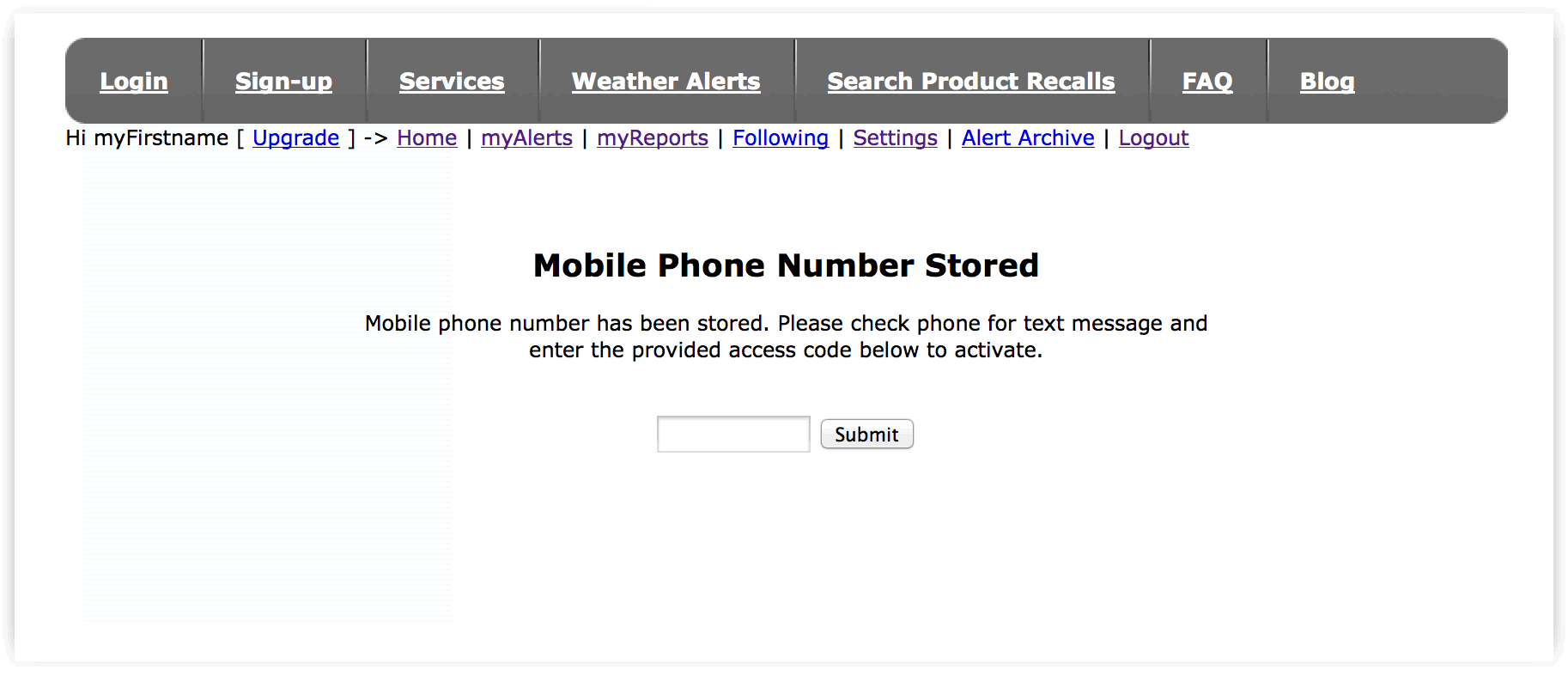
After initial signup it is possible to add or change a mobile phone number inside your account under “settings” in the member menu. Near the bottom the the settings page reference “Mobile Phone” section and click “Add Phone” link. After mobile phone and carrier information is submitted a validation code text message text is sent. On the page displayed after submitting mobile phone information an entry box will be displayed to enter the activation code. After entering the activation code it is always a good idea to then check to ensure you have the desired alerts set for text message notification under “myAlerts” in member menu.
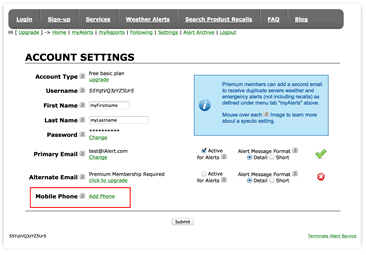 Account setting page highlighting option to add new mobile phone for text alert notification |
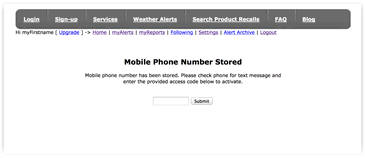 Page to enter mobile activation code displayed after entering mobile information from settings page (click to enlarge) |
Entering Mobile Activation Code From Inside Your Account
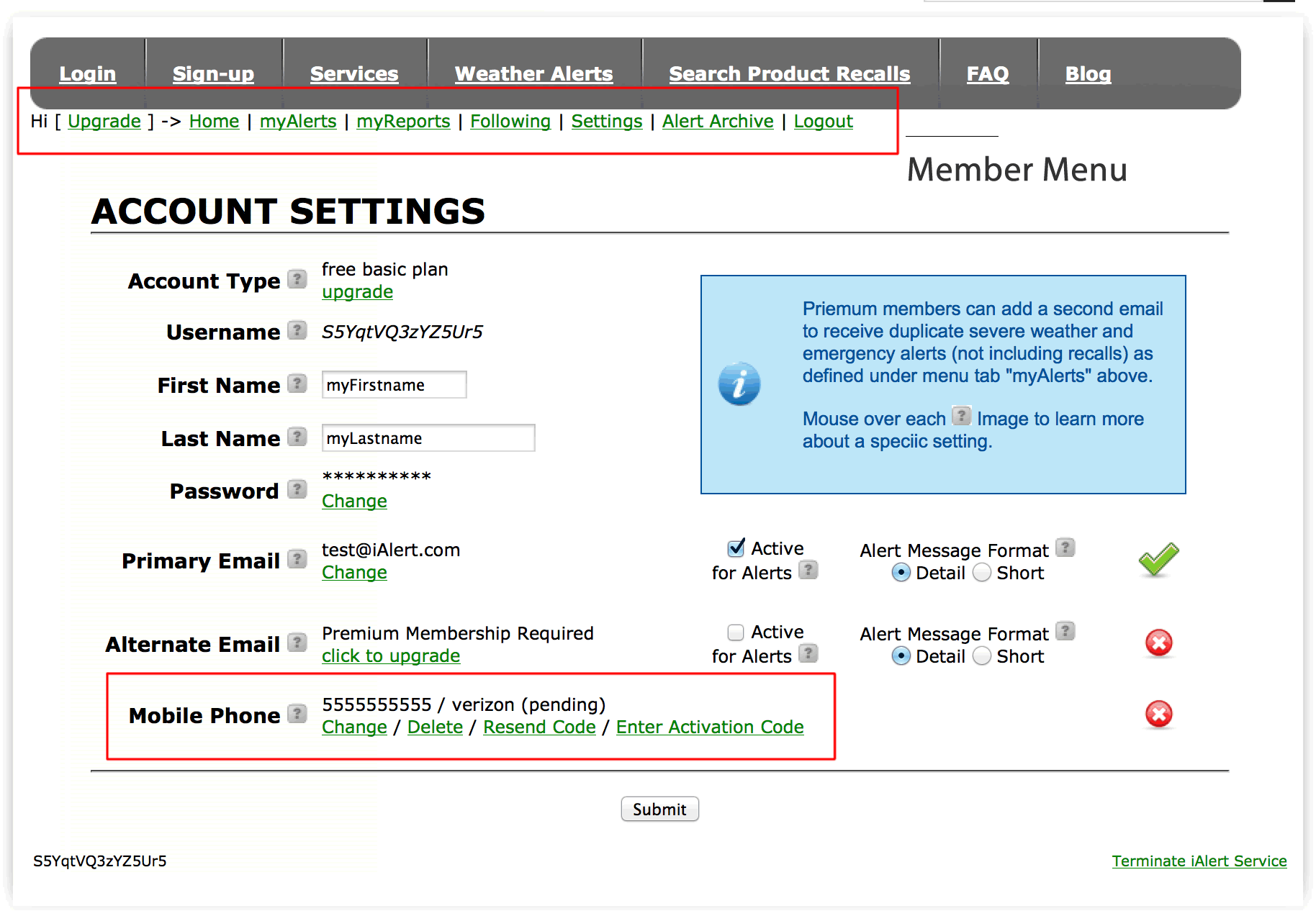
Mobile activation codes can be resent or entered inside member accounts by first logging in at
http://iAlert.com/login.php and then by selecting “settings” from the member menu. Toward the bottom of page see “Mobile Phone” section that allows existing mobile numbers to be changed/deleted and activation code to be resent and an option to “Enter Activation Code”. Clicking the “Enter Activation Code” will present an entry box where received activation codes can be entered to link your phone to account. Just remember to select “myAlerts” from member menu to ensure you have selected desired to receive alerts by text message.
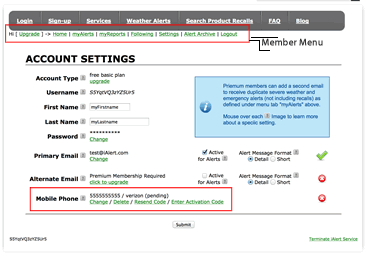
Member account setting page highlighting location of “member menu” and location of Mobile Phone options